> For the complete documentation index, see [llms.txt](https://docs.scholars.net/llms.txt). Markdown versions of documentation pages are available by appending `.md` to page URLs; this page is available as [Markdown](https://docs.scholars.net/how-to/set-up-your-tax-information.md).
# Set up your tax information
Learn how to complete the tax information required for payments.
You can set up your tax information from your profile before accepting an offer. The questions and tax form you receive depend on your circumstances and payment provider.
{% hint style="warning" %}
Scholars cannot provide tax, legal, or accounting advice. Read each question carefully and consult your own adviser if you are not sure which answer or form applies to you.
{% endhint %}
## How to set up your tax information
{% stepper %}
{% step %}
### Open Payouts & Verification
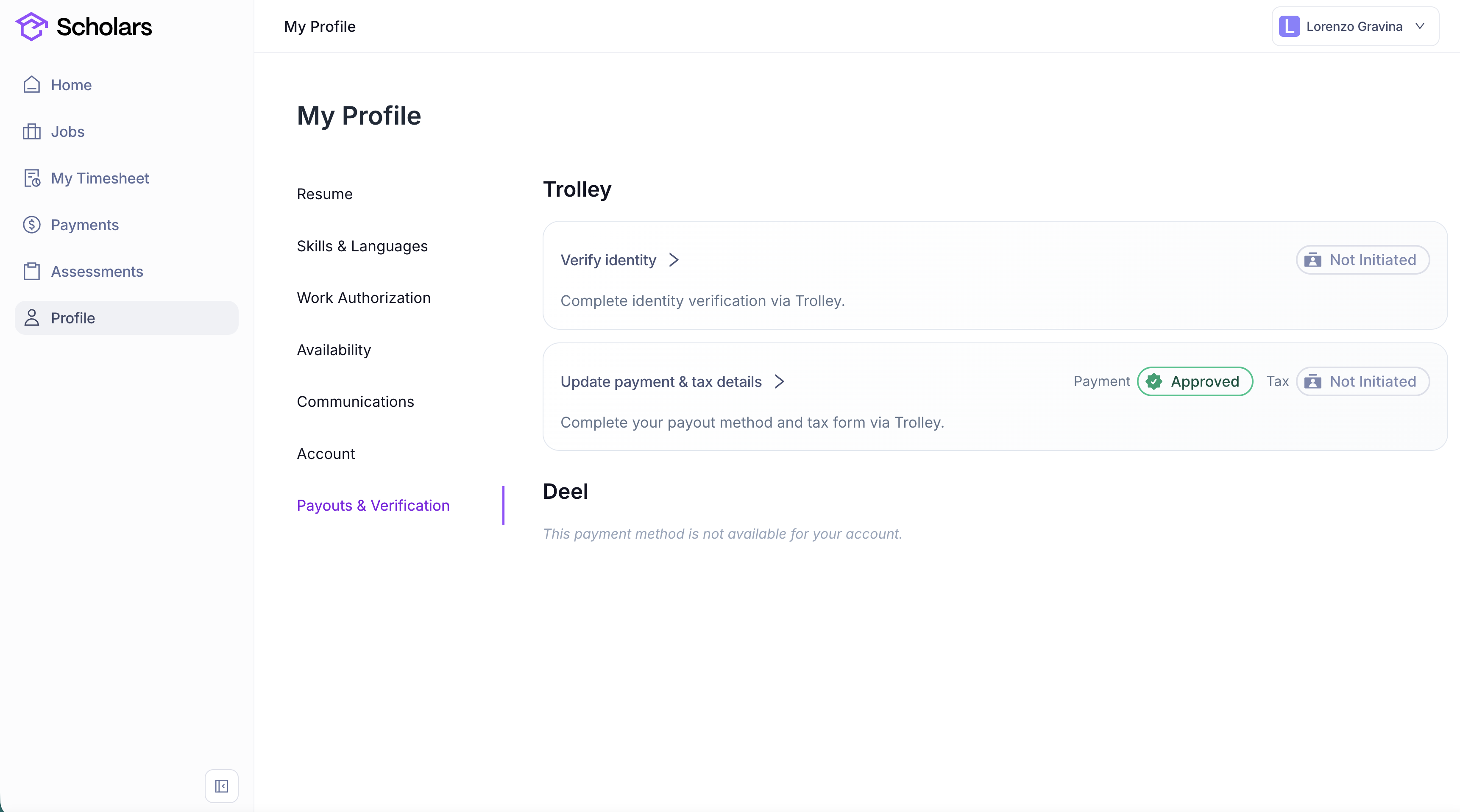
Go to your profile page, then to *Payouts & Verification*.
{% endstep %}
{% step %}
### Open your payment provider
If Trolley is available for your account, click *Update payment & tax details*.
If Deel is available instead, click *Go to Deel* and complete your tax information there.
{% endstep %}
{% step %}
### Start your tax form
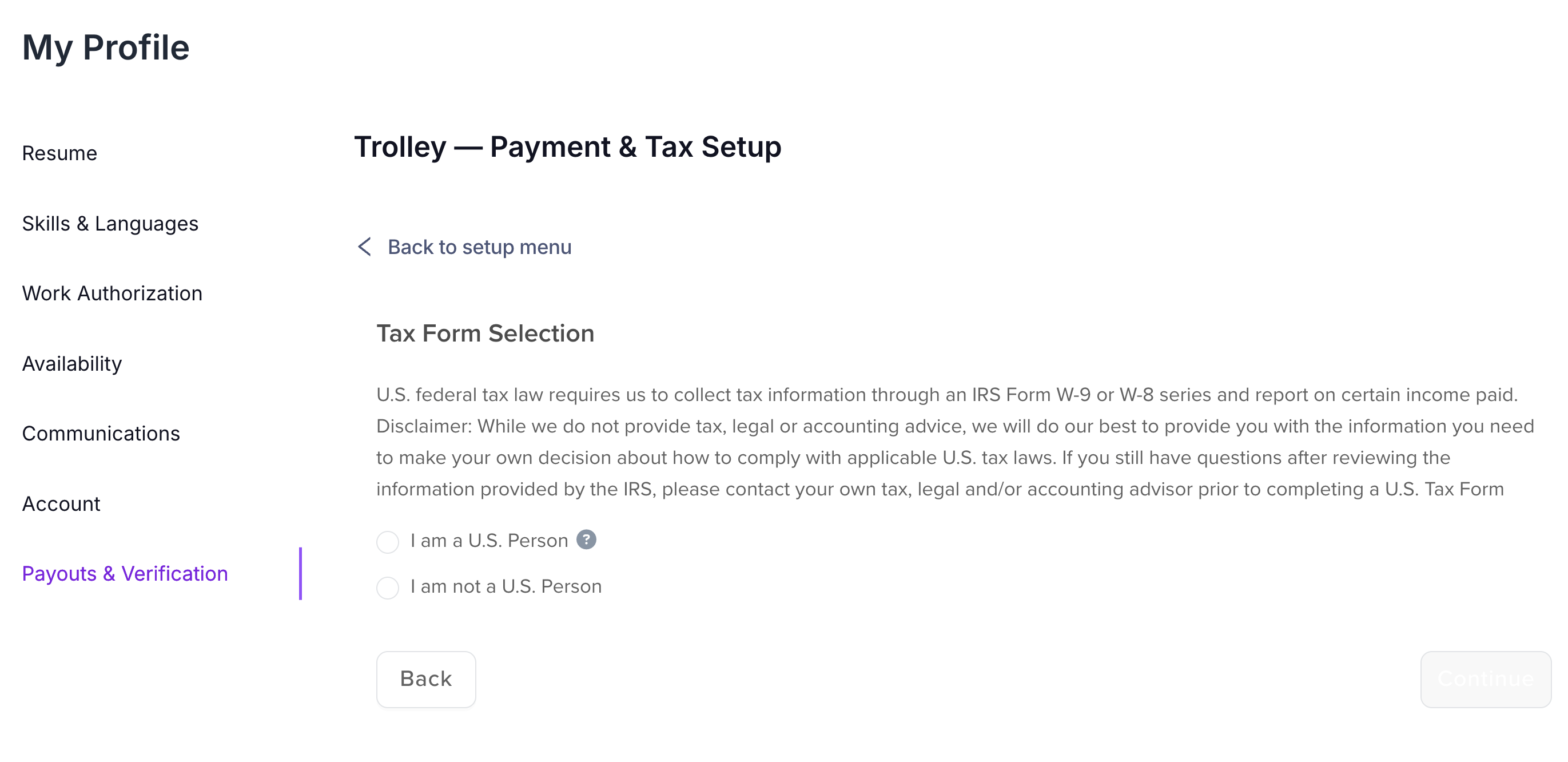
In the Trolley setup, scroll below *Payout Methods* to the tax section and start the tax form. Select whether you are a U.S. person, choose the option that applies to you, then click *Continue*.
{% endstep %}
{% step %}
### Complete the questions
Answer the remaining questions. The exact form and questions depend on the option you selected and your circumstances.
{% endstep %}
{% step %}
### Review and submit
Review your information, complete the certification, and submit the form. You may be asked to type your full name before clicking *Certify*.
{% endstep %}
{% step %}
### Check your tax status
Return to the setup menu and check the *Tax* badge:
| Status | What it means |
| ---------------- | -------------------------------- |
| *Approved* | The tax setup is complete. |
| *Pending* | A submission is being processed. |
| *Not Initiated* | The form has not been started. |
| *Voided* | The submitted form was rejected. |
| {% endstep %} | |
| {% endstepper %} | |
## If your form is rejected
If the badge shows *Voided*, open *Update payment & tax details*, correct the requested information, and submit a new form. Before submitting, check that:
* Your taxpayer identification number (TIN) is present and correct.
* Your full address is complete.
* Your other details match your official records.
Scholars also emails you when a form is voided and explains what needs attention.
## If your status has not changed
If the status has not changed after two days, email . Include your full name and the personal email address you use for Scholars.
## More about taxes
For more information about tax forms and your responsibilities, see:
{% content-ref url="/pages/oupQ1bqTwusA5ERFWu80" %}
[Taxes](/info/taxes.md)
{% endcontent-ref %}
---
# Agent Instructions
This documentation is published with GitBook. GitBook is the documentation platform designed so that both humans and AI agents can read, navigate, and reason over technical content effectively. Learn more at gitbook.com.
## Querying This Documentation
If you need additional information that is not directly available in this page, you can query the documentation by asking a question.
Perform an HTTP GET request on the following URL with the `ask` and `goal` query parameters:
```
GET https://docs.scholars.net/how-to/set-up-your-tax-information.md?ask=&goal=
```
`ask` is the immediate question: it should be specific, self-contained, and written in natural language.
`goal` is what the user is ultimately trying to achieve, the reason they need the answer. Sharing it helps GitBook give you a better, more relevant answer. A goal is most helpful when it describes the outcome the user wants rather than restating the question. For example, with `ask=how do I create an API token`, a goal like `automate deployments from our CI pipeline` lets GitBook tailor the answer to that use case.
The response will contain a direct answer to the question and relevant excerpts and sources from the documentation.
Use this mechanism when the answer is not explicitly present in the current page, you need clarification or additional context, or you want to retrieve related documentation sections.